
excel productivity
·
6 MIN READ
·
October 26, 2026
10 Excel Data Cleaning Techniques to Save Time at Work
Ha
Harshad Patel
Chief Academic Officer & Master Financial Modeler
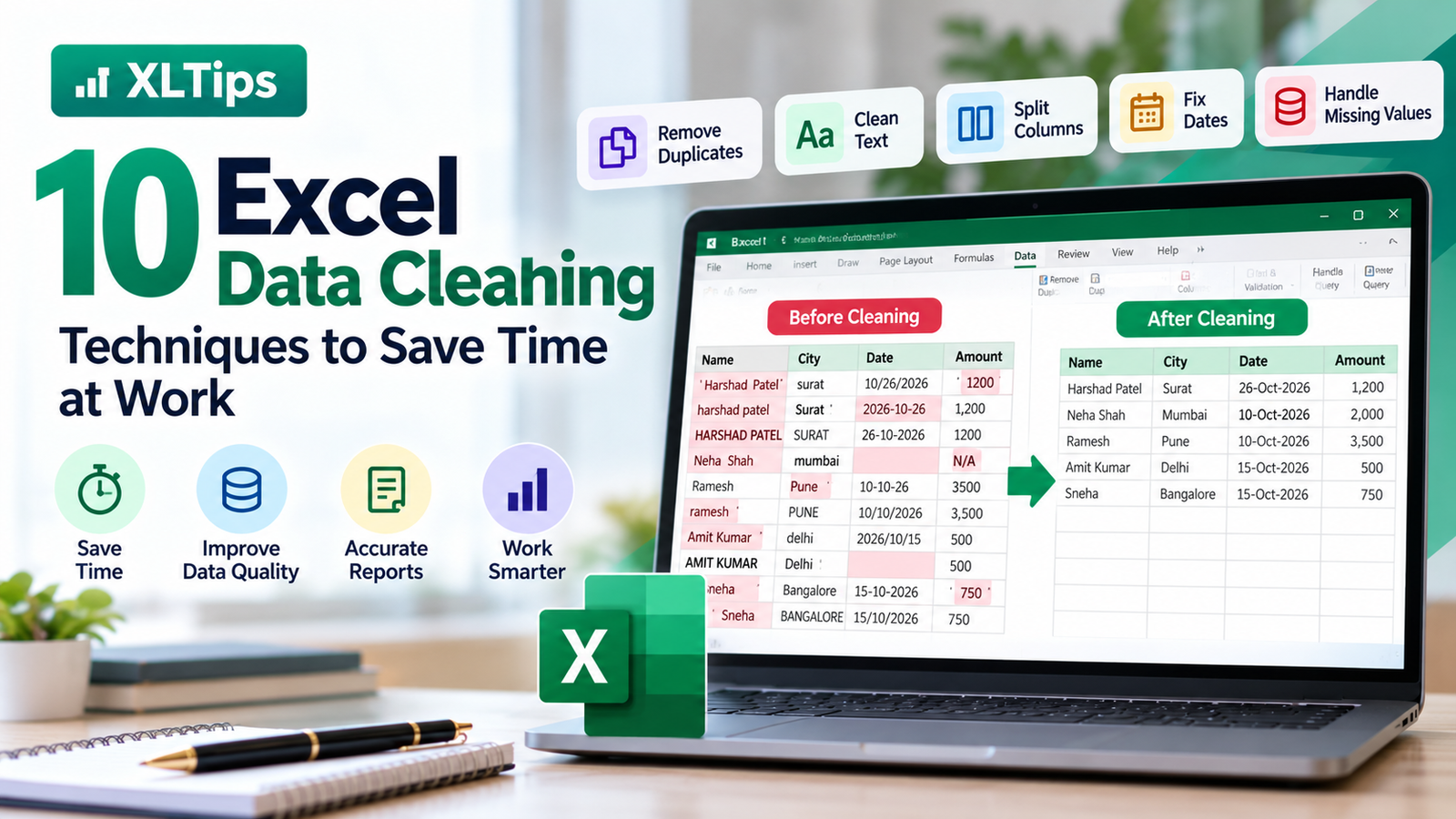
10 Excel Data Cleaning Techniques to Save Time at Work
Have you ever received an Excel file with duplicate customer names, inconsistent dates, extra spaces, or missing information?
These problems are common in sales reports, customer databases, employee records, supplier lists, and financial data.
Before analyzing information or preparing a dashboard, you need clean and consistent data. Fortunately, Microsoft Excel provides several tools and formulas that make this process easier.
In this guide, you will learn 10 practical Excel data cleaning techniques that you can use in your everyday office work.
1. Remove Duplicate Records
Duplicate records can affect sales totals, customer counts, inventory reports, and other business calculations.
Excel's Remove Duplicates feature helps you remove repeated records.
Steps:
Select your data range.
Go to the Data tab.
Select Remove Duplicates.
Choose the columns Excel should check.
Click OK.
Practical example: Remove duplicate customer records using an email address or customer ID.
Important: Keep a backup of the original data and select the correct identifying columns before removing duplicates.
2. Remove Extra Spaces Using TRIM
Imported data sometimes contains unnecessary spaces before, after, or between words.
These spaces can cause lookup formulas to fail.
Use:
=TRIM(A2)
If A2 contains Harshad Patel , the formula returns Harshad Patel.
Practical use: Clean customer names, supplier details, employee lists, and product descriptions.
For non-breaking spaces copied from websites, you may need additional cleaning:
=TRIM(SUBSTITUTE(A2,CHAR(160)," "))
3. Standardize Text Using UPPER, LOWER, and PROPER
Text values may appear in inconsistent formats.
For example:
harshad patel
HARSHAD PATEL
harshad PATEL
Excel provides three useful functions.
Convert to uppercase:
=UPPER(A2)
Convert to lowercase:
=LOWER(A2)
Capitalize the first letter of each word:
=PROPER(A2)
Practical use: Standardize names, categories, city names, and text labels.
Remember that PROPER may not correctly format every name, abbreviation, or brand name, so review the results where necessary.
4. Find and Highlight Duplicate Values
Sometimes you need to identify duplicates without deleting them.
Use Conditional Formatting.
Steps:
Select the column you want to check.
Open Home → Conditional Formatting.
Select Highlight Cells Rules → Duplicate Values.
Choose a formatting style.
Click OK.
Excel will highlight repeated values.
Practical use: Identify duplicate invoice numbers, email addresses, product codes, or employee IDs.
This method is especially helpful when you need to review the records before making changes.
5. Split Data Into Separate Columns
Imagine a column contains full names, but your report needs separate first and last names.
You can use Text to Columns.
Steps:
Select the column.
Go to Data → Text to Columns.
Select Delimited.
Choose the delimiter, such as a space or comma.
Review the preview and finish the process.
For Microsoft 365, you can also use:
=TEXTSPLIT(A2," ")
Practical use: Split names, addresses, product codes, and imported data.
Tip: Make sure the destination columns are empty so existing information is not overwritten.
6. Find and Replace Incorrect Values
Find and Replace can correct repeated mistakes across a dataset.
Press:
Ctrl + H
Then enter the text to find and its replacement.
For example, you may need to replace an incorrectly entered department name with the correct spelling.
Practical use: Correct inconsistent category labels, abbreviations, and repeated text errors.
Use the options carefully, particularly when replacing short text that may appear inside other words or codes.
7. Handle Blank Cells
Missing values can create problems in reports and analysis.
To find blank cells:
Select the relevant data range.
Press Ctrl + G.
Select Special.
Choose Blanks.
Review the selected cells.
Depending on your data, you might fill blanks with a suitable value, flag them for review, or leave them empty.
For example, if a missing department name is required for reporting, you could use a label such as Needs Review.
Important: Do not automatically replace every blank with zero. A blank can mean unknown, unavailable, or not applicable.
8. Convert Numbers Stored as Text
Sometimes numbers imported from external systems are stored as text.
This can prevent Excel from calculating totals correctly.
Common solutions include:
Select the cells and use the warning icon's Convert to Number option.
Use Data → Text to Columns when appropriate.
Use a formula such as:
=VALUE(A2)
Practical use: Clean imported sales amounts, quantities, and numeric codes.
Do not convert identifiers such as product codes or postal codes to numbers if their leading zeros must be preserved.
9. Standardize Date Formats
Dates may appear in different formats, such as:
26/10/2026
2026-10-26
10/26/2026
Some entries may be actual Excel dates, while others are text.
To format genuine Excel dates:
Select the date column.
Press Ctrl + 1.
Choose Date or Custom.
Apply a consistent display format.
For example:
dd-mmm-yyyy
Practical use: Standardize invoice dates, order dates, payment dates, and employee records.
Changing the display format alone will not convert text into genuine Excel dates. Check ambiguous date values carefully, especially when importing data from different countries.
10. Use Power Query for Repeatable Data Cleaning
If you receive the same type of report every week or month, Power Query can save significant time.
Power Query allows you to import, transform, and load data through a repeatable workflow.
Common operations include:
Remove duplicates.
Trim and clean text.
Change data types.
Split columns.
Replace values.
Filter unwanted records.
Combine data from multiple files.
Getting started:
Select your data.
Go to Data → From Table/Range.
Apply the required transformations.
Select Close & Load.
When a new version of the source data becomes available, you can often update the output by refreshing the query.
This is especially useful for recurring reports and large datasets.
Bonus: Create a Simple Data Cleaning Checklist
Before using a dataset for analysis, review the following:
Check
What to verify
Duplicates
Identify repeated records
Text
Remove unnecessary spaces
Formatting
Standardize names and categories
Missing values
Review blank or incomplete fields
Numbers
Confirm values are numeric where required
Dates
Verify dates are valid and consistent
Identifiers
Preserve leading zeros where needed
Accuracy
Compare results against the original source
Conclusion
Data cleaning is an essential Excel skill for anyone who works with business information.
By learning these 10 techniques, you can prepare cleaner reports, reduce errors, improve lookup results, and spend less time correcting spreadsheets manually.
For occasional tasks, Excel formulas and built-in tools may be enough. For recurring or complex data preparation, Power Query can make your workflow much more efficient.
At XLTips, we focus on practical Excel skills that solve real workplace problems.
Keep practising these techniques and apply them to your next sales report, customer list, invoice register, or monthly business report.
Learn Excel practically. Work smarter with XLTips.