
Excel Automation & VBA
·
2 MIN READ
·
October 26, 2026
Excel Automation for Beginners: Save Time on Repetitive Tasks
Ha
Harshad Patel
Chief Academic Officer & Master Financial Modeler
Excel Automation for Beginners: Save Time on Repetitive Tasks
Do you spend hours updating reports, cleaning data, or copying information between Excel files?
Excel automation helps you reduce repetitive work and complete tasks faster.
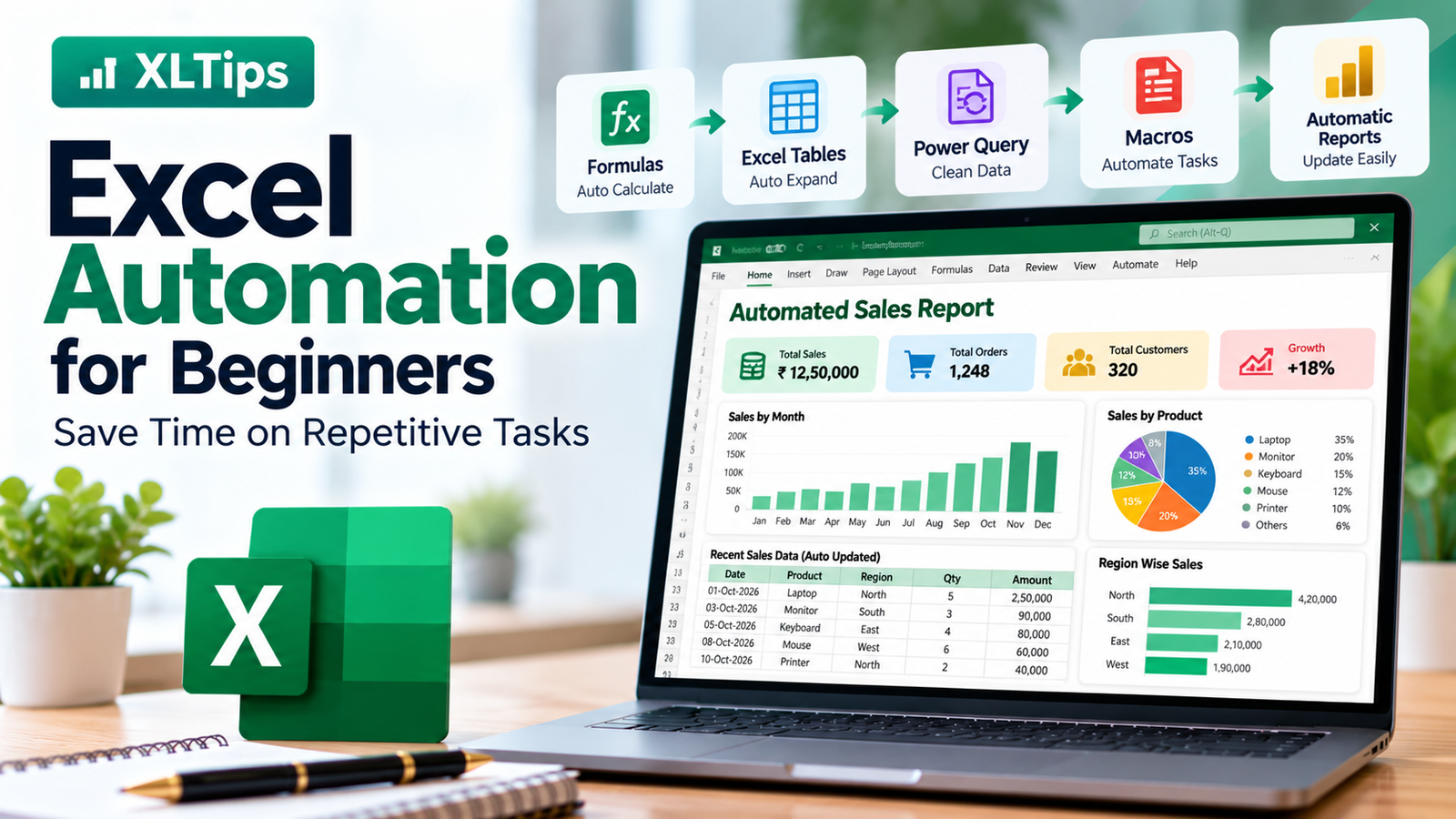
Here are five simple ways to start automating your daily Excel work.
1. Use Formulas Instead of Manual Calculations
Instead of calculating totals manually, use formulas.
=SUM(B2:B100)
When the numbers change, Excel recalculates the total automatically.
Best for: Sales reports, expense sheets, and invoice calculations.
2. Use Excel Tables
Select your data and press:
Ctrl + T
Excel converts your data into a Table.
Tables automatically expand when you add new rows and help formulas and filters work more consistently.
Best for: Customer lists, inventory, and monthly reports.
3. Automate Data Cleaning With Power Query
Power Query helps you clean and prepare data through repeatable steps.
You can use it to:
Remove duplicate records.
Clean text and spaces.
Combine multiple files.
Change date and number formats.
Once the process is set up, you can refresh the query when new data arrives.
Best for: Monthly sales reports and recurring data imports.
4. Record a Macro
Macros can automate a series of repetitive actions.
For example, a macro can apply formatting, create a report layout, or prepare a worksheet for printing.
In Excel:
Open the View tab or Developer tab.
Select Record Macro.
Perform the actions you want to automate.
Stop recording.
Run the macro to repeat the recorded steps.
Save the workbook as an Excel Macro-Enabled Workbook (.xlsm) when you need to retain VBA macros.
Best for: Repetitive formatting and report preparation.
Only enable macros from sources you trust.
5. Create Automatic Reports
Combine formulas, Tables, PivotTables, and charts to build reports that are easier to update.
For example, a sales report can show:
Total sales
Sales by product
Sales by region
Monthly performance
When the source data is updated, refresh the relevant PivotTables and queries to update the report.
Conclusion
You don't need to automate everything at once.
Start with formulas and Excel Tables, then learn Power Query and macros as your needs grow.
Small improvements can save hours of repetitive work over time.
Learn practical Excel automation with XLTips and work smarter every day!