
Spreadsheets & Core Formulas
·
5 MIN READ
·
October 26, 2026
10 Essential Excel Formulas Every Office Professional Should Know
Ha
Harshad Patel
Chief Academic Officer & Master Financial Modeler
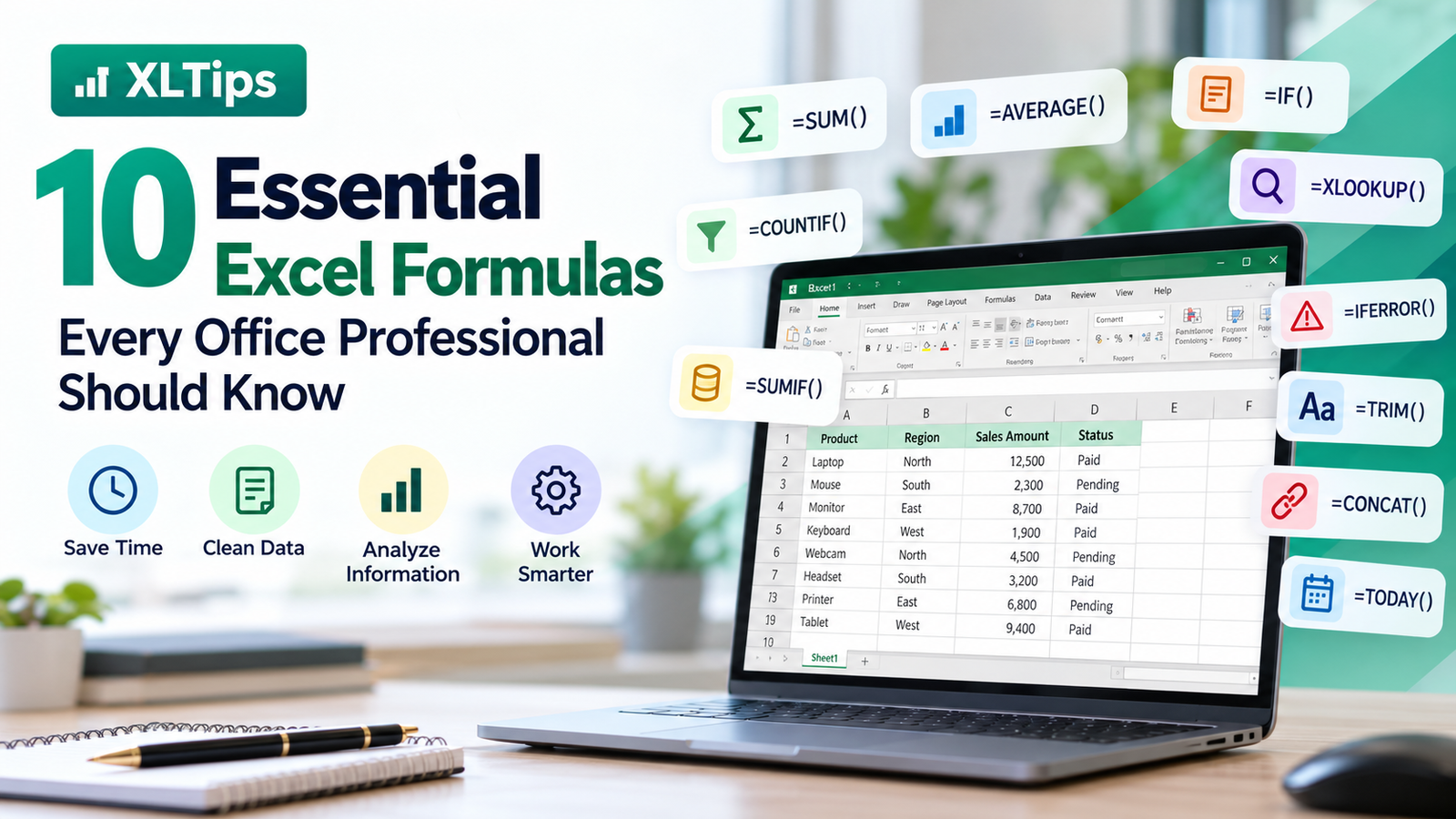
10 Essential Excel Formulas Every Office Professional Should Know
Microsoft Excel is one of the most widely used tools in offices for managing data, preparing reports, tracking expenses, and analyzing business performance.
Whether you work in finance, administration, sales, HR, procurement, or operations, knowing the right Excel formulas can help you complete everyday tasks faster and more accurately.
In this guide, we will explore 10 essential Excel formulas with practical examples you can use in your daily work.
1. SUM — Add Numbers Quickly
The SUM function adds numbers across cells or ranges.
Example: Calculate total sales from cells B2 to B10.
=SUM(B2:B10)
Practical use: Calculate monthly sales, total expenses, invoice amounts, or department budgets.
2. AVERAGE — Calculate the Average
The AVERAGE function calculates the arithmetic mean of a range of numbers.
=AVERAGE(C2:C20)
Practical use: Calculate average sales, employee performance scores, order values, or monthly expenses.
3. IF — Make Decisions Automatically
The IF function returns one result when a condition is true and another when it is false.
=IF(D2>=10000,"Target Achieved","Below Target")
Practical use: Identify whether a sales target has been achieved, flag overdue payments, or classify performance.
4. COUNTIF — Count Based on a Condition
COUNTIF counts cells that meet a specified condition.
=COUNTIF(E2:E100,"Paid")
Practical use: Count paid invoices, completed tasks, approved applications, or orders from a particular category.
You can also count values above a target:
=COUNTIF(D2:D100,">10000")
5. SUMIF — Add Values That Meet a Condition
SUMIF adds values only when the corresponding cells meet a condition.
=SUMIF(A2:A100,"North",B2:B100)
Here, column A contains regions and column B contains sales amounts.
Practical use: Calculate sales for a particular region, expenses for one department, or purchases from a specific supplier.
6. XLOOKUP — Find Information Automatically
XLOOKUP searches for a value and returns a corresponding result from another range. It is available in Microsoft 365 and newer Excel versions.
=XLOOKUP(A2,ProductList!A:A,ProductList!B:B,"Not Found")
In this example, Excel searches for the value in A2 in the ProductList worksheet's column A and returns the corresponding value from column B.
Practical use: Find product names, prices, employee details, customer information, or supplier codes.
Tip: If you use an older Excel version without XLOOKUP, VLOOKUP or INDEX and MATCH may be suitable alternatives.
7. IFERROR — Handle Formula Errors
IFERROR returns a specified result when a formula produces an error.
=IFERROR(A2/B2,0)
If the calculation produces an error, Excel displays 0 instead.
Practical use: Make reports cleaner and prevent common calculation errors from appearing in dashboards.
Choose the fallback value carefully so that genuine data problems are not hidden.
8. TRIM — Clean Extra Spaces
TRIM removes leading and trailing spaces and reduces repeated spaces between words to single spaces.
=TRIM(A2)
For example, a name containing unwanted spaces can be cleaned before matching or reporting.
Practical use: Clean customer lists, employee records, supplier names, and imported data.
Note that TRIM does not remove every type of invisible character; some imported data may need additional cleaning.
9. CONCAT — Combine Text
CONCAT joins text from multiple cells or text strings.
=CONCAT(A2," ",B2)
If A2 contains a first name and B2 contains a surname, the formula combines them with a space.
Practical use: Combine names, create reference codes, and prepare descriptions.
You can also use the ampersand operator:
=A2&" "&B2
10. TODAY — Get the Current Date
The TODAY function returns the current date according to Excel's calculation settings.
=TODAY()
You can calculate the number of days between an invoice date and today:
=TODAY()-A2
Practical use: Track invoice age, monitor deadlines, calculate elapsed days, or maintain follow-up reports.
For invoice aging, you should also consider the due date and payment status rather than relying only on the invoice date.
Bonus: Practical Office Example
Imagine you have an Excel sales report with the following columns:
Column
Information
A
Product
B
Region
C
Sales Amount
D
Payment Status
You can use the formulas below to answer common business questions.
Total sales
=SUM(C2:C100)
Sales for the North region
=SUMIF(B2:B100,"North",C2:C100)
Number of paid transactions
=COUNTIF(D2:D100,"Paid")
Average sales amount
=AVERAGE(C2:C100)
With just a few formulas, you can turn a basic data list into a useful business report.
Tips for Using Excel Formulas Effectively
Use clear column headings and keep your data organized.
Convert data ranges into Excel Tables when appropriate.
Check that numbers and dates are stored in the correct format.
Use absolute references such as $A$1 when a formula needs a fixed reference.
Test formulas against a few known examples before relying on the results.
Avoid hiding errors without understanding their cause.
Conclusion
Learning Excel formulas does not have to be complicated. Start with SUM, AVERAGE, IF, COUNTIF, and SUMIF, then gradually learn lookup functions and data-cleaning techniques.
These formulas can help you reduce repetitive work, improve accuracy, and prepare reports more efficiently.
At XLTips, our goal is to make Excel learning practical, simple, and useful for real office environments.
Keep learning, keep practising, and make Excel work smarter for you.